Trunk/ Ports Usage
These charts display histograms of trunk and port usage, which you can toggle between, as the campaign runs. The window can be shown/ hidden using the toggle button  in the top toolbar, or F10 on the keyboard.
The histogram axes are
- x - Number of Trunks/ Ports
- y - % Usage
i.e. the histograms show frequency of usage, by time, of particular numbers of trunks or ports, and the percentage figure displayed is for the number of trunks or ports most frequently used.
 Explanation of examples
The examples shown in Fig. 1 and Fig. 2 are based on the Predictive base campaign in
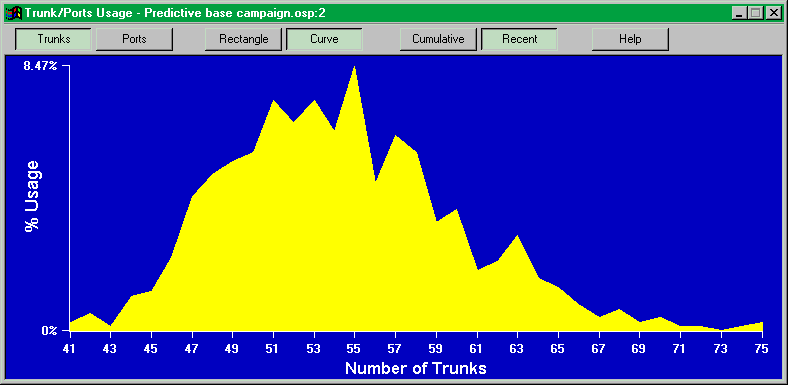
Fig. 1 - Trunks - Recent
This histogram is a curved one based on five second samplings of what has happened in a campaign in the previous hour (in this case the final hour of the campaign) and was built up from 720 samplings in that time.
The number of trunks most frequently used in the hour is approximately 55, and the percentage of time this number was used during the hour is shown as 8.47%.
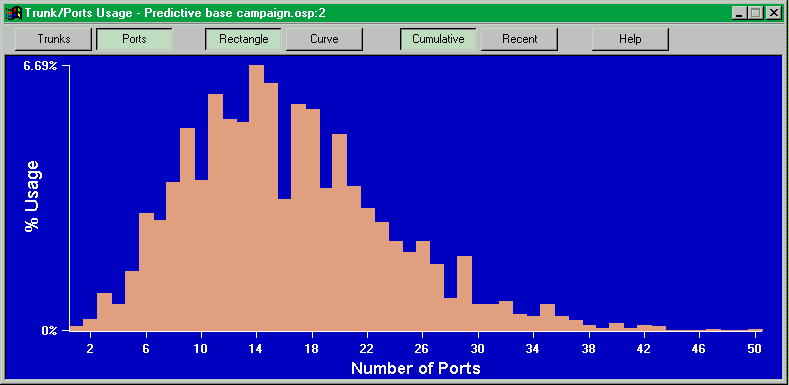
Fig. 2 - Ports - Cumulative
This histogram is a rectangular one based on five second samplings of port usage since the campaign began. In this case, the histogram represents a campaign time of 4 hours, and almost 3,000 samplings. The much greater number of samplings explains why the cumulative picture changes more slowly as the campaign progresses.
In this case the number of ports most frequently used during the campaign was 14, and the percentage of time this number was used is shown as 6.69%
Toggle options
Using the buttons at the top, you can toggle options on the histograms as follows
- trunks or ports
- rectangle or curve
- cumulative or recent
Limiting resources
If you want to set an upper limit on the trunks and/ or ports available to a campaign, then you can do so by selecting Dialing Resources from the Options menu. See Limits On Dialing Resources. These settings are local and will be stored with a campaign when you save it.
If your objective is to work out the number of agents on a campaign, then Oceanic® will assume unlimited trunk and port availability, ignoring any other settings you may have chosen for Limits On Dialing Resources.
Sampling frequency
The default value is 5 seconds, the one we used in these examples. If you want to, you can set it anywhere between 1 and 60 seconds, by selecting the Trunk/ Ports Sampling Control on the Options menu (Fig. 3).
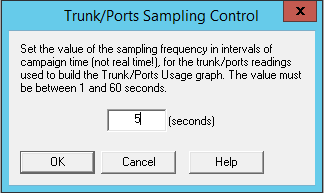
Fig. 3 - Trunk/ Ports Sampling Control
If you set it at too low a level, you are likely to slow your campaign run times.